> ## Documentation Index
> Fetch the complete documentation index at: https://base-a060aa97-eb-mini-app-ia-overhaul.mintlify.site/llms.txt
> Use this file to discover all available pages before exploring further.
# Sharing Your Mini App
> Turn every user action into organic growth with shareable, metadata-powered embeds that drive engagement and discovery.
> **What you'll learn**\
> By the end of this guide, you'll be able to:
>
> * Understand how embeds and metadata work together to create rich social previews
> * Choose between static and dynamic embeds for different use cases
> * Debug and optimize embeds for maximum performance and engagement
## Why Sharing Matters
Sharing is one of the fastest and most cost-effective ways to grow your Mini App user base.
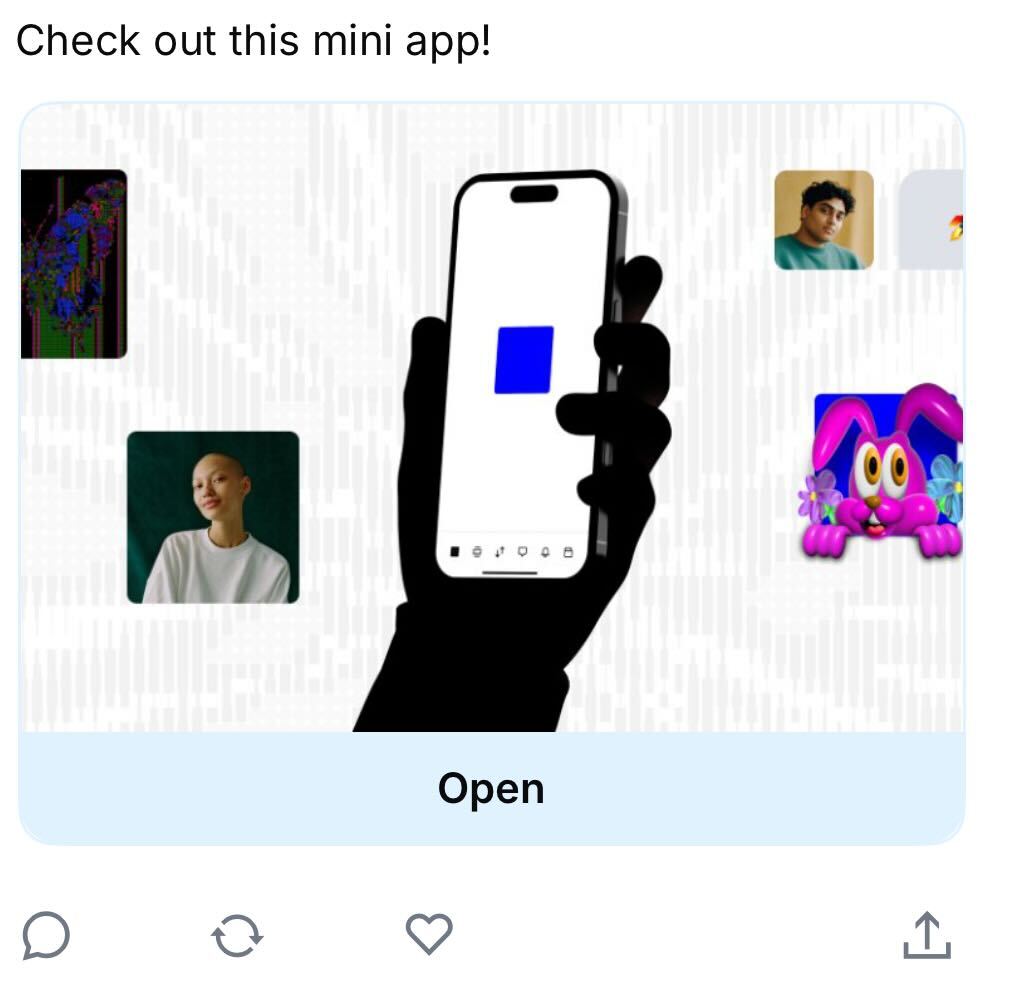
When a user shares your app into a feed (such as Base App or Farcaster), the platform generates a **rich embed** — a visual preview complete with your branding, imagery, and call-to-action button that appears directly in social feeds.
Every share:
* **Increases reach** — friends and followers see your app instantly
* **Drives engagement** — visually compelling embeds get more clicks than plain links
* **Improves ranking** — shared apps are more likely to appear in "Trending" and category leaderboards
* **Creates viral loops** — great experiences encourage users to share with their networks
## Metadata and Embeds
Understanding how metadata creates embeds is fundamental to implementing effective sharing for your Mini App.
### How Metadata Creates Embeds
When someone shares your Mini App link, platforms like Base App don't just show a plain URL. Instead, they fetch **metadata** from your page and use it to generate a rich **embed** — a visual preview card with your image, title, and call-to-action button.
The metadata acts as instructions that tell the platform exactly how to display your Mini App in feeds.
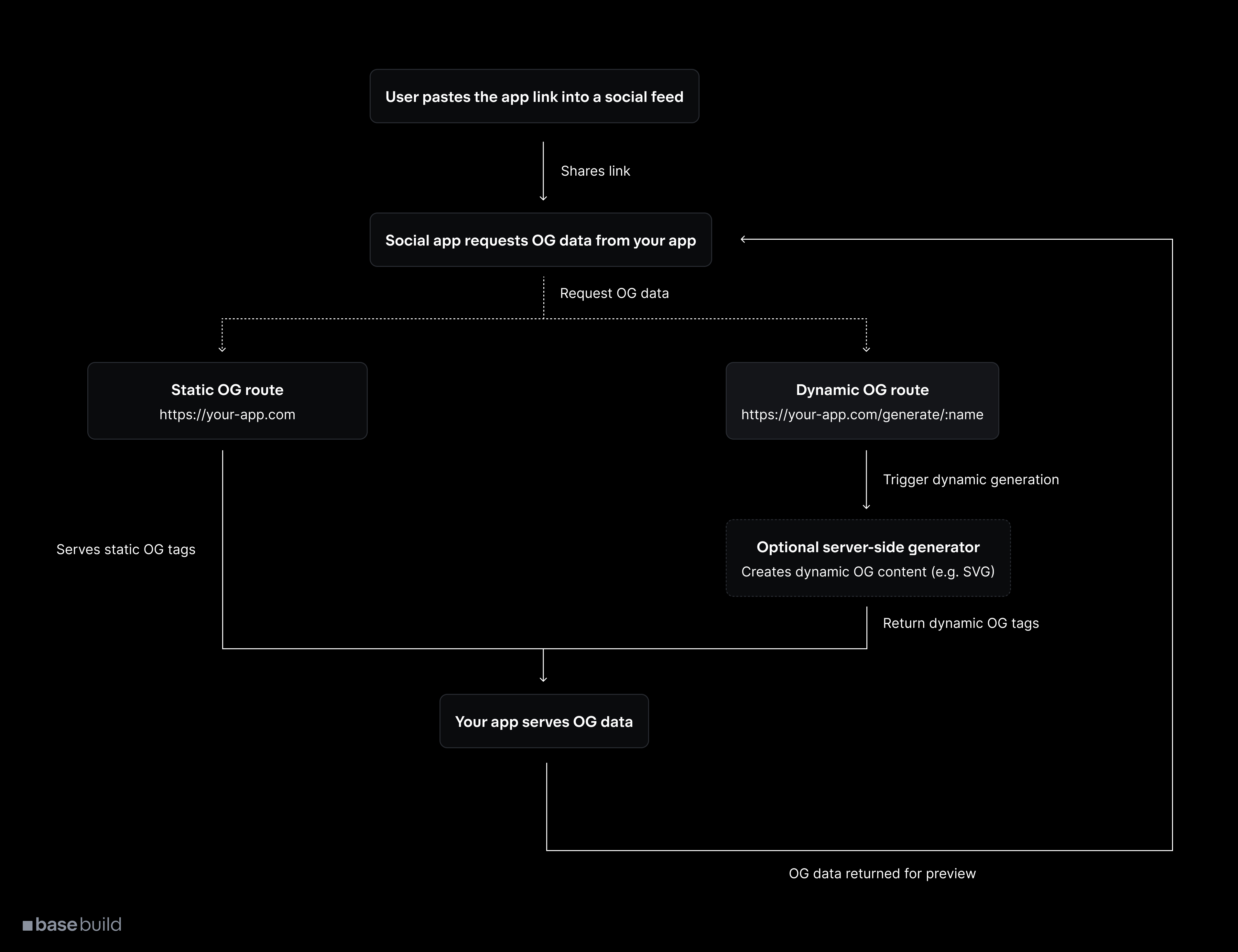
**The complete metadata-to-embed process:**
User clicks share or pastes your Mini App URL into a social feed (Base App, Farcaster).
The platform makes a request to your URL and reads the `` tags in your HTML to understand how to display your app.
Platform transforms your metadata into a rich visual embed with image, title, description, and interactive button.
Your Mini App appears as an attractive, clickable card that users can launch directly from their feed.
### Metadata Structure
Your metadata consists of specific HTML meta tags that define each part of the embed:
```html
```
Each piece of metadata directly corresponds to a visual element in the embed:
* **`imageUrl`** → The main visual that appears in the embed
* **`button.title`** → Text on the call-to-action button
* **`action.name`** → App name displayed in the embed
* **`action.url`** → Where users go when they click the embed
### Embed Appearance in Feeds
Here's how your metadata appears as a rich embed in social feeds:
### Manifest vs Embed Metadata
Your Mini App uses two types of metadata:
#### Manifest file
**Purpose:** App registration and discovery
Located at `/.well-known/farcaster.json`, this file contains your app's basic information for Base App's directory.
```json
{
"name": "Your App Name",
"description": "App description",
"iconUrl": "https://your-app.com/icon.png",
"url": "https://your-app.com"
}
```
Mini Apps require a complete manifest. Read the [manifest requirements](/base-app/miniapps/how-manifest-work#example-manifest).
#### Embed metadata
**Purpose:** Embed generation when shared
Located in your HTML `` tags, this metadata creates the rich embeds when users share your app.
```html
```
This controls how your embeds appear in social feeds.
### Best Practices for Metadata
* **Image optimization:** Use 3:2 aspect ratio for optimal display across platforms
* **Clear value proposition:** Make your button text and description immediately compelling
* **Visual consistency:** Ensure your embed image reflects your app's actual interface
* **Fast loading:** Optimize images and ensure metadata endpoints respond quickly
* **Test thoroughly:** Validate embeds across different platforms before launch
## Sharing
### Adding Share Functionality
Prompt users to share during key accomplishment moments in your app using composeCast from the MiniKit SDK
```ts
import { useComposeCast } from '@coinbase/onchainkit/minikit';
export default function ComposeCastButton() {
const { composeCast } = useComposeCast();
const handleCompose = () => {
composeCast({
text: 'Just minted an awesome NFT using @coinbase OnchainKit! ',
});
};
//
const handleComposeWithEmbed = () => {
composeCast({
text: 'Check out this amazing Mini App!',
embeds: ['https://your-mini-app-url.com'],
});
};
return (
);
}
```
**Strategic sharing moments:**
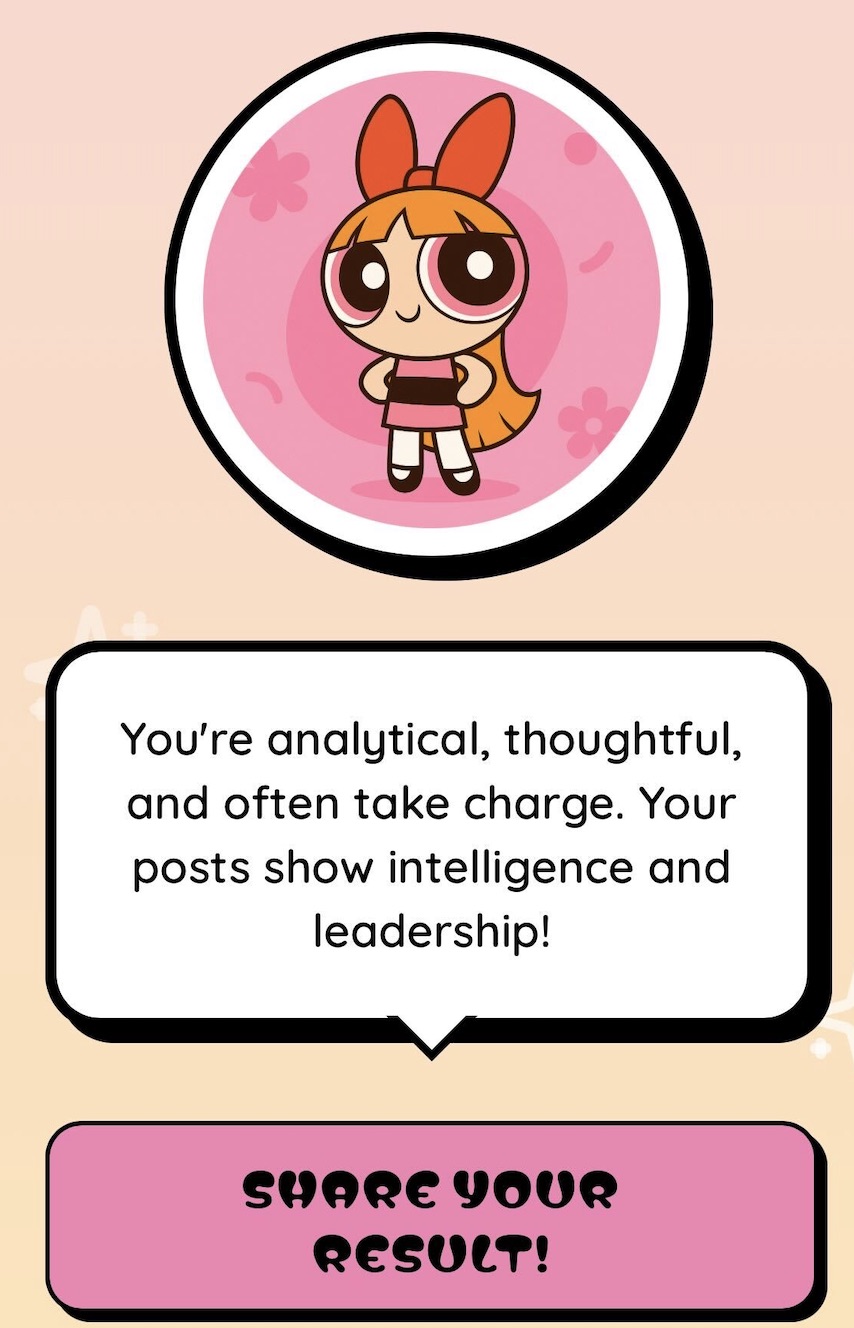
* After completing a quiz ("I'm Blossom!")
* After minting an NFT ("Just minted my first collectible!")
* After completing a challenge ("Finished today's puzzle in 2 minutes!")
* After reaching a milestone ("Hit level 10!")
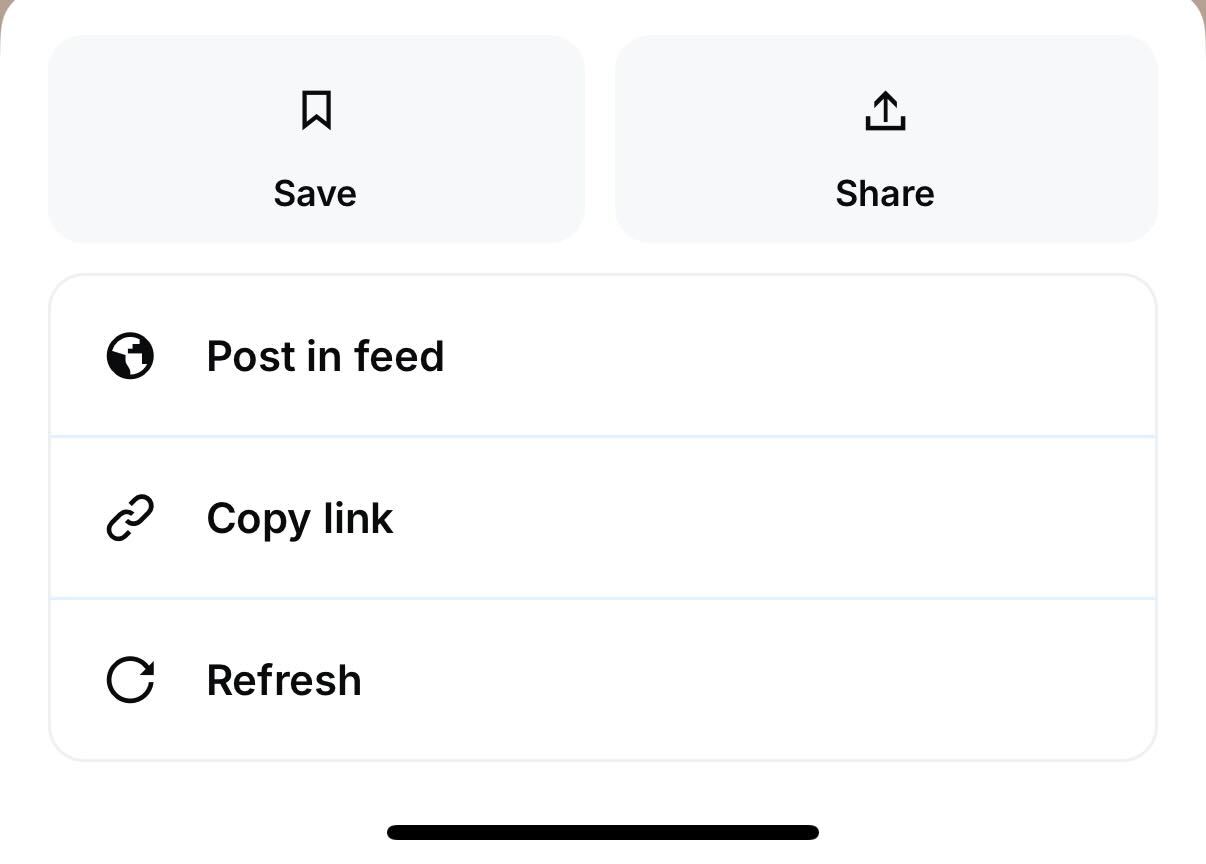
### From the Base App UI
Users can also share directly from your app's detail view in the Base app through the built-in share functionality.
## Embed Types
### Choosing Between Static and Dynamic Embeds
#### Static embeds
**Use case:** Simple, consistent branding across all shares
A single, unchanging image and text for all shares of your Mini App.
**Pros:**
* Easy to set up and maintain
* Consistent branding across all shares
* Fast loading with no server processing
**Cons:**
* Less personalized user experience
* No real-time data reflection
**Best for:** Brand awareness campaigns, simple apps without user-specific content
#### Dynamic embeds
**Use case:** Live, user-specific, or time-sensitive data
Metadata is generated in real-time when a share happens, perfect for displaying current user stats or live information.
**Example:** Trading dashboard showing user's current portfolio:
```
/user/portfolio/123
```
Your backend fetches the latest stats and generates an OG image dynamically.
**Benefits:**
* Highly personalized experience
* Reflects real-time data
* Drives re-shares when state changes
* Creates FOMO and urgency
**Best for:** Trading apps, social stats, live leaderboards, time-sensitive content
Real-time generation can be slower — ensure your endpoint responds within 3–5 seconds to avoid timeouts.
### Dynamic Metadata Request Flow
User shares your Mini App link containing dynamic parameters (e.g., `/result/user/123`).
The social platform makes a server request to fetch your page's metadata.
Your route handler extracts parameters and fetches relevant data (user stats, quiz results, etc.).
Server generates customized OG metadata including personalized image and text content.
Platform receives the metadata and renders the personalized embed in the user's feed.
Use [Vercel OG Image Generation](https://vercel.com/docs/functions/og-image-generation) for fast, serverless image rendering that scales automatically.
## Implementation
### How MiniKit works with Embeds
If you're building with MiniKit, metadata setup is handled automatically in your `layout.tsx` or `layout.ts` file:
```ts layout.tsx
export async function generateMetadata(): Promise {
const URL = process.env.NEXT_PUBLIC_URL;
return {
title: process.env.NEXT_PUBLIC_ONCHAINKIT_PROJECT_NAME,
description: "Your Mini App description here",
other: {
"fc:frame": JSON.stringify({
version: "next",
imageUrl: process.env.NEXT_PUBLIC_APP_HERO_IMAGE,
button: {
title: `Launch ${process.env.NEXT_PUBLIC_ONCHAINKIT_PROJECT_NAME}`,
action: {
type: "launch_frame",
name: process.env.NEXT_PUBLIC_ONCHAINKIT_PROJECT_NAME,
url: URL,
splashImageUrl: process.env.NEXT_PUBLIC_SPLASH_IMAGE,
splashBackgroundColor: process.env.NEXT_PUBLIC_SPLASH_BACKGROUND_COLOR,
},
},
}),
},
};
}
```
**Customizing for different pages:**
You can create page-specific metadata by implementing `generateMetadata` in individual page components:
```ts page.tsx
// Dynamic metadata for user-specific results using minikit
export async function generateMetadata({ params }: { params: { userId: string } }): Promise {
const userData = await fetchUserData(params.userId);
return {
title: `${userData.name}'s Quiz Result`,
other: {
"fc:frame": JSON.stringify({
version: "next",
imageUrl: `https://your-app.com/api/og/user/${params.userId}`,
button: {
title: "Take the Quiz",
action: {
type: "launch_frame",
name: "Personality Quiz",
url: process.env.NEXT_PUBLIC_URL,
},
},
}),
},
};
}
```
if not using minikit
```html
```
## Debugging
### Debugging Tools
Use these tools to test and validate your embeds before going live:
Test your Mini App metadata and preview how embeds will appear in Base App feeds.
### Common Issues and Solutions
**Possible causes:**
* Incorrect image dimensions (should be 3:2 aspect ratio)
* Missing required `fc:frame` meta tags
* Invalid JSON in frame metadata
* Image URL not accessible or returning errors
**Solutions:**
* Verify image dimensions and accessibility
* Validate JSON structure in metadata
* Test metadata with debugging tools
**Possible causes:**
* Aggressive cache headers preventing updates
* Make sure to repost the mini app to update any metadata
**Solutions:**
* Set appropriate `Cache-Control` headers (max-age=300 for dynamic content)
* Use cache-busting parameters in image URLs
* Wait 10-15 minutes for platform caches to refresh
**Possible causes:**
* Heavy server processing for dynamic images
* Database queries blocking metadata generation
* Large image file sizes
**Solutions:**
* Optimize image generation process
* Pre-generate common embed variations
* Use serverless functions for scaling
* Compress images without quality loss
Check out our debugging section that covers embed issues [here](/base-app/miniapps/debugging)
Set `Cache-Control` headers carefully: long enough for performance (300-600 seconds), short enough to allow metadata updates to appear quickly.
## Next Steps
Ready to implement sharing in your Mini App? Follow this implementation checklist:
Decide between static, predetermined dynamic, or real-time dynamic embeds based on your app's functionality and user experience goals.
Add `fc:frame` metadata to your.
Integrate sharing prompts into key moments: achievements, completions, milestones, and other celebration-worthy events.
Use debugging tools to validate your embeds, test across platforms, and optimize for performance before launching.
Continue building your Mini App with these resources:
* [Search and Discovery](/base-app/miniapps/search-and-discovery): Learn how users find your Mini App
* [MiniKit Overview](/base-app/miniapps/overview): Complete MiniKit integration guide
 **The complete metadata-to-embed process:**
 ### Manifest vs Embed Metadata
Your Mini App uses two types of metadata:
#### Manifest file
**Purpose:** App registration and discovery
Located at `/.well-known/farcaster.json`, this file contains your app's basic information for Base App's directory.
```json
{
"name": "Your App Name",
"description": "App description",
"iconUrl": "https://your-app.com/icon.png",
"url": "https://your-app.com"
}
```
### Manifest vs Embed Metadata
Your Mini App uses two types of metadata:
#### Manifest file
**Purpose:** App registration and discovery
Located at `/.well-known/farcaster.json`, this file contains your app's basic information for Base App's directory.
```json
{
"name": "Your App Name",
"description": "App description",
"iconUrl": "https://your-app.com/icon.png",
"url": "https://your-app.com"
}
```
 ```ts
import { useComposeCast } from '@coinbase/onchainkit/minikit';
export default function ComposeCastButton() {
const { composeCast } = useComposeCast();
const handleCompose = () => {
composeCast({
text: 'Just minted an awesome NFT using @coinbase OnchainKit! ',
});
};
//
const handleComposeWithEmbed = () => {
composeCast({
text: 'Check out this amazing Mini App!',
embeds: ['https://your-mini-app-url.com'],
});
};
return (
```ts
import { useComposeCast } from '@coinbase/onchainkit/minikit';
export default function ComposeCastButton() {
const { composeCast } = useComposeCast();
const handleCompose = () => {
composeCast({
text: 'Just minted an awesome NFT using @coinbase OnchainKit! ',
});
};
//
const handleComposeWithEmbed = () => {
composeCast({
text: 'Check out this amazing Mini App!',
embeds: ['https://your-mini-app-url.com'],
});
};
return (
 ## Embed Types
### Choosing Between Static and Dynamic Embeds
#### Static embeds
## Embed Types
### Choosing Between Static and Dynamic Embeds
#### Static embeds
 **Use case:** Simple, consistent branding across all shares
A single, unchanging image and text for all shares of your Mini App.
**Pros:**
* Easy to set up and maintain
* Consistent branding across all shares
* Fast loading with no server processing
**Cons:**
* Less personalized user experience
* No real-time data reflection
**Best for:** Brand awareness campaigns, simple apps without user-specific content
#### Dynamic embeds
**Use case:** Simple, consistent branding across all shares
A single, unchanging image and text for all shares of your Mini App.
**Pros:**
* Easy to set up and maintain
* Consistent branding across all shares
* Fast loading with no server processing
**Cons:**
* Less personalized user experience
* No real-time data reflection
**Best for:** Brand awareness campaigns, simple apps without user-specific content
#### Dynamic embeds
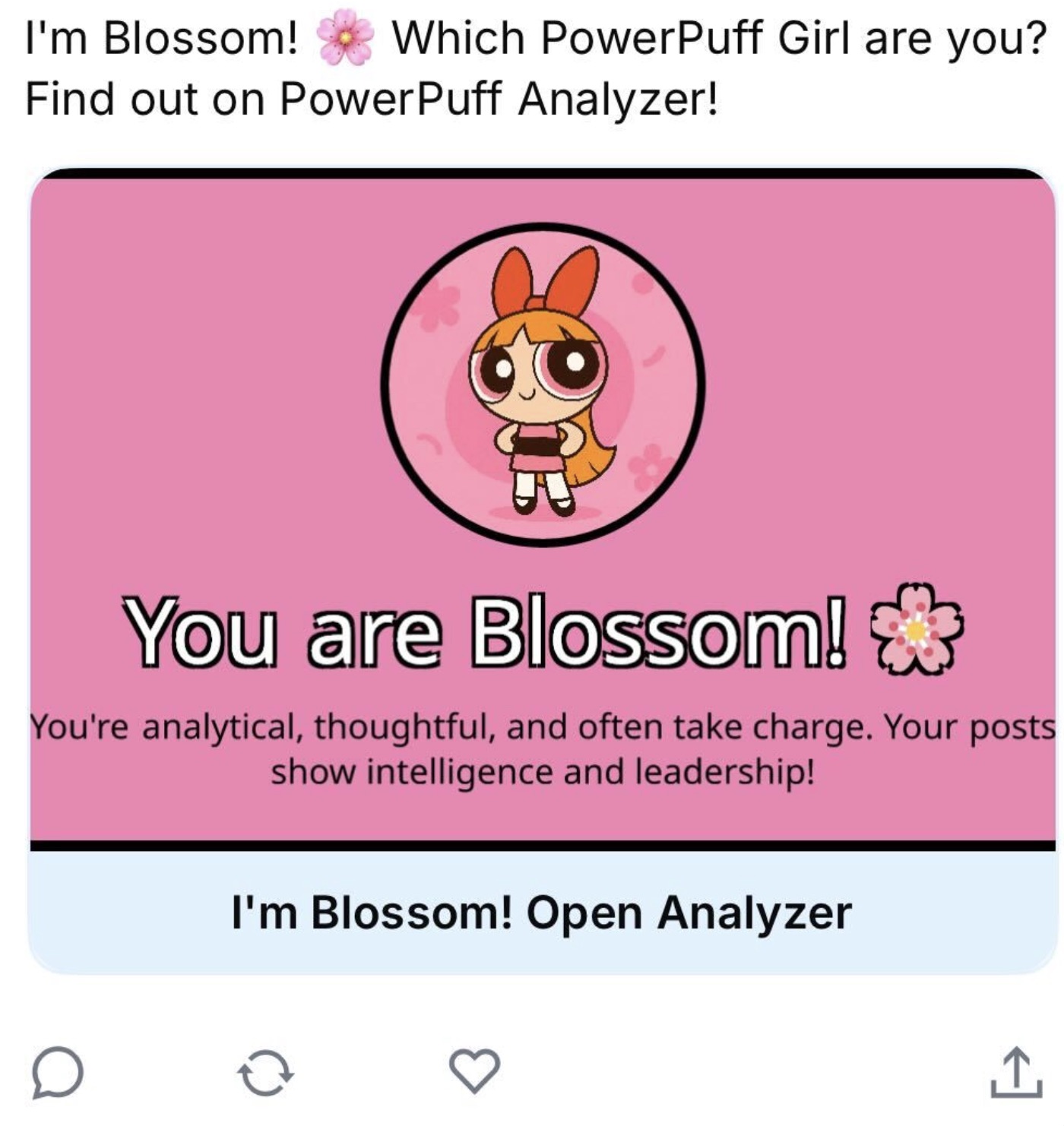 **Use case:** Live, user-specific, or time-sensitive data
Metadata is generated in real-time when a share happens, perfect for displaying current user stats or live information.
**Example:** Trading dashboard showing user's current portfolio:
```
/user/portfolio/123
```
Your backend fetches the latest stats and generates an OG image dynamically.
**Benefits:**
* Highly personalized experience
* Reflects real-time data
* Drives re-shares when state changes
* Creates FOMO and urgency
**Best for:** Trading apps, social stats, live leaderboards, time-sensitive content
**Use case:** Live, user-specific, or time-sensitive data
Metadata is generated in real-time when a share happens, perfect for displaying current user stats or live information.
**Example:** Trading dashboard showing user's current portfolio:
```
/user/portfolio/123
```
Your backend fetches the latest stats and generates an OG image dynamically.
**Benefits:**
* Highly personalized experience
* Reflects real-time data
* Drives re-shares when state changes
* Creates FOMO and urgency
**Best for:** Trading apps, social stats, live leaderboards, time-sensitive content