

1
Install Astro
Create a new Astro project by using the Astro CLI.
More information about Astro can be found here.
2
Install React
Astro does not come with React by default, so if you are not already using React
in your application, you will need to install it.
Terminal
3
Install OnchainKit
Add OnchainKit to your project by installing the
@coinbase/onchainkit package.4
Get A Client API Key
Get your Client API Key from Coinbase Developer Platform.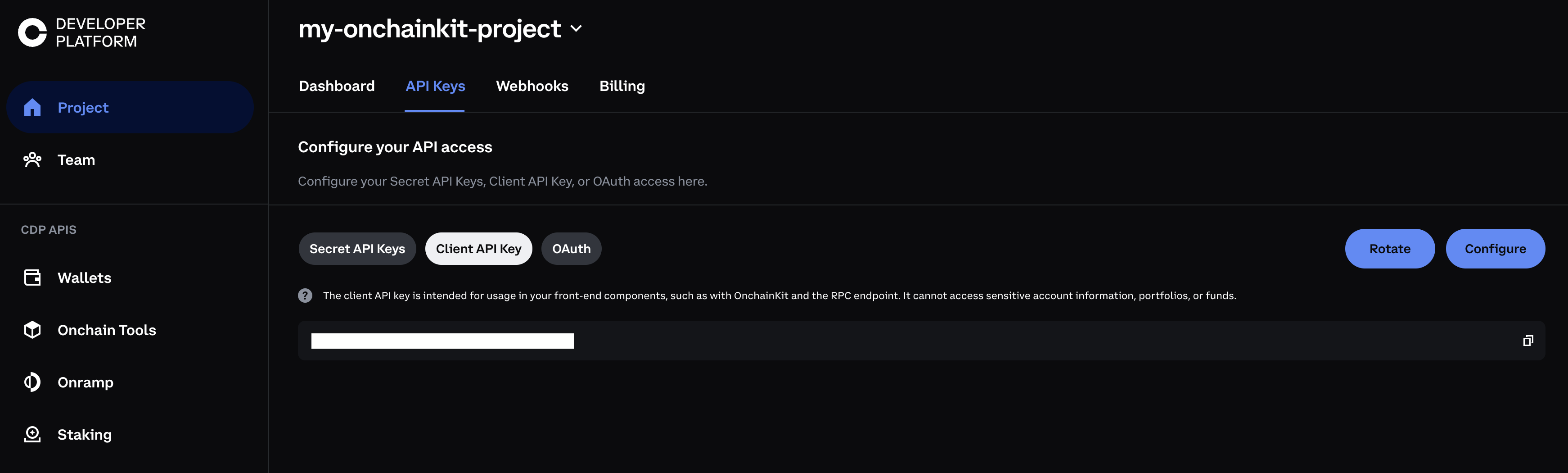 Create a
 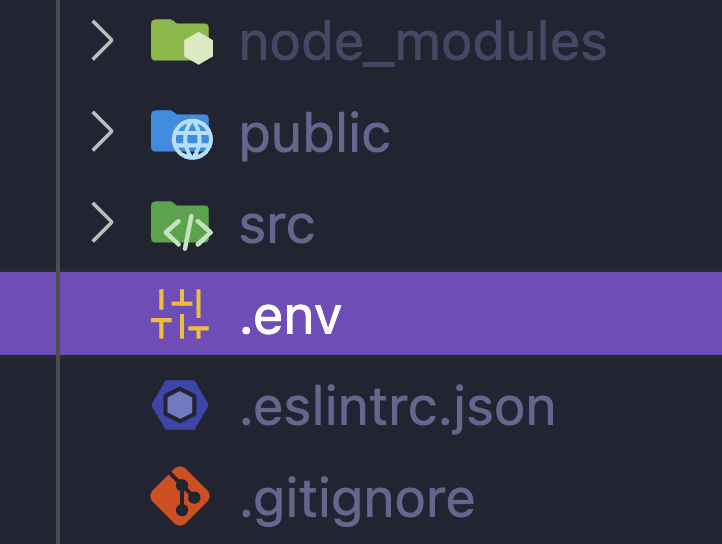 Add your Client API Key to the
.env file in your project’s root directory..env file:.env
5
Add Providers
Create a
providers.tsx file. Add OnchainKitProvider with your desired config.Under the hood, OnchainKit will create our recommended Wagmi and QueryClient
providers. If you wish to customize these providers, check out Custom
Supplemental Providers.providers.tsx
6
Wrap your OnchainKit components with <AppProviders />
After configuring the providers in step 4, you will need to wrap your OnchainKit components
with the The advantage of ReactIsland is that you will only have a single provider at any time.
The drawback is that your OnchainKit components will all need to live in the same Island.The advantage of individual wrappers is that you can use OnchainKit components anywhere in your app.
The drawback is that you will have multiple providers if you use more than one OnchainKit component.
<AppProviders /> component.There are two options for this:- Create a component, eg.
<ReactIsland />that contains all OnchainKit components. - Wrap every OnchainKit component individually.
7
Add OnchainKit Components to your App
You can add OnchainKit components to your app by using the component(s) you
created above into your Don’t forget to add the
.astro files.For example, if you created a ReactIsland, you can add it to your
src/pages/index.astro file:src/pages/index.astro
client:only="react" directive to your OnchainKit component,
as this is required for Astro to render React components.8
Import OnchainKit Styles
OnchainKit components come with pre-configured styles.
To include these styles in your project, add the following import
statement at the top of the This ensures that the OnchainKit styles are loaded and applied to your entire application.
Layout.astro file:- For Tailwind CSS users, check out our Tailwind Integration Guide.
- Update the appearance of components by using our built-in themes or crafting your own custom theme. Explore the possibilities in our Theming Guide.
Start building!
Explore our ready-to-use onchain components:Identity– Show Basenames, avatars, badges, and addresses.Wallet– Create or connect wallets with Connect Wallet.Transaction– Handle transactions using EOAs or Smart Wallets.Checkout– Integrate USDC checkout flows with ease.Fund– Create a funding flow to onboard users.Tokens– Search and display tokens with various components.Swap– Enable token swaps in your app.Mint– View and Mint NFTs in your app.