

Prerequisites
Before you begin developing with MiniKit, you’ll need:- Farcaster Account: Create an account on Farcaster to test and deploy your Mini Apps.
- Coinbase Developer Platform Account (Optional): Sign up for a Coinbase Developer Platform account if you need CDP API key for additional functionalities.
What is a Mini App?
A mini app is a lightweight web app that runs directly inside Farcaster, without needing to open a browser or download anything. Built using familiar tools like Next.js and minikit, mini apps behave just like normal apps — but launch instantly from posts, making them feel native to the Farcaster experience.Initial Setup
1
Create a new MiniKit project using the CLI
2
Enter your CDP Client API key when prompted
You can get a CDP API key by going to the CDP
Portal and navigating API Keys →
Client API Key.
3
Skip Mini App Account Manifest Setup
You will be asked if you’d like to set up your manifest. You can skip the
manifest setup step as we’ll handle that separately once we know our project’s
URL.
4
Navigate to your project directory and install dependencies
Terminal
Testing Your Mini App
To test your Mini App in Farcaster, you’ll need a live URL. We recommend using Vercel to deploy your MiniKit app, as it integrates seamlessly with the upstash/redis backend required for stateful Mini Apps, webhooks, and notifications. Alternatively, you can use ngrok to tunnel your localhost to a live url.Using ngrok
Using ngrok
- Start your development server:
Terminal
- Install and start ngrok to create a tunnel to your local server:
Terminal
-
Copy the HTTPS URL provided by ngrok (e.g.
https://your-tunnel.ngrok.io) - Visit the Farcaster Manifest Tool
- Paste your ngrok URL into “Domain” and tap Submit
Deploying to Vercel
1
Install Vercel CLI
2
Deploy with the command
bash vercel 3
Set environment variables in your Vercel project settings
You can use
vercel env add to set these up via CLI:- NEXT_PUBLIC_CDP_CLIENT_API_KEY (from CDP Portal)
- NEXT_PUBLIC_URL (deployed app URL)
- NEXT_PUBLIC_IMAGE_URL (optional)
- NEXT_PUBLIC_SPLASH_IMAGE_URL (optional)
- NEXT_PUBLIC_SPLASH_BACKGROUND_COLORs
- Copy your deployed vercel URL
- Visit the Farcaster Manifest Tool
- Paste URL into “Domain”
- Tap Submit
Exploring Built-in Features
The template comes with several pre-implemented features. Let’s explore where they are and how they work.MiniKitProvider
TheMiniKitProvider is set up in your providers.tsx file. It wraps your application to handle initialization, events, and automatically applies client safeAreaInsets to ensure your app doesn’t overlap parent application elements.
app/providers.tsx
useMiniKit
TheuseMiniKit hook is implemented in your main page component (app/page.tsx). It handles initialization of the frame and provides access to the SDK context.
app/page.tsx
Creating the Manifest
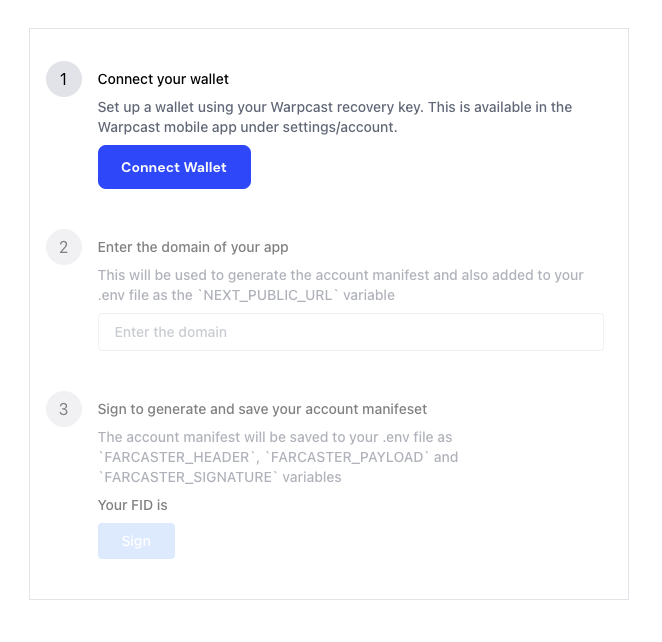
The Frame Manifest is required in order for users to save the frame to their account. This means its also required to send notifications to the user. We initially skipped this step when setting up the app. Now that we know our vercel url, we can configure our manifest. To set up the manifest, run the following in your TerminalTerminal
y to proceed with the setup and your browser will open to the following page:
string
required
Base64 encoded header from manifest generation
string
required
Base64 encoded payload from manifest generation
string
required
Signature from manifest generation
useAddFrame
TheuseAddFrame hook is used to add your mini app to the user’s list of mini apps. It’s implemented in your main page component and displays a button in the top right allowing the user to add the mini app to their list.
When a user adds the mini app, it returns a url and token, which is used for sending the user notifications. For this walkthrough we’ll simply console.log those results to use them later when setting up notifications.
app/page.tsx
useOpenUrl
TheuseOpenUrl hook is used to open external URLs from within the frame. In the template, its used in the footer button which links to the MiniKit page.
app/page.tsx
Additional MiniKit Features
Now, let’s implement additional hooks provided by the MiniKit library. We’ll add these features one by one.useClose
First, let’s add the ability to close the frame from within the interface:app/page.tsx
If you reload the frame in the Farcaster dev tools preview, you’ll now see the
close button in the top right.
usePrimaryButton
The Primary Button is a button that always exists at the bottom of the frame. Its good for managing global state which is relevant throughout your mini app. For the template example, we’ll use the Primary Button to Pause and Restart the game. The game state is managed within thesnake.tsx component, and we can easily add the usePrimaryButton hook there since the MiniKit hooks are available throughout the app.
app/components/snake.tsx
useViewProfile
Now, let’s add profile viewing capability. The useViewProfile hook allows you to define what profile to use by defining the user’s FID, which is great for social applications. If you don’t define an FID, it defaults to the client FID.app/page.tsx
useNotification
One of the major benefits of mini apps is that you can send notifications to your users through their social app. Recall the token and url we saved in the useAddFrame section? We’ll use those now to send a user a notification. In this guide, we’ll simply send a test notification unrelated to the game activity.app/page.tsx
Notice that we first check if the user has added the frame to their list of
mini apps before displaying the button. This is using the
context object
provided by useMiniKit(). If you don’t see the button to send the
notification, its likely because mini app hasn’t been saved.Conclusion
Congratulations, you’ve created your first mini app, set up the manifest, added key MiniKit hooks, and sent your users a notification! We’re excited to see what you build with MiniKit!Explore MiniKit Overview
Learn more about MiniKit features and capabilities
Social Patterns Guide
Design patterns for social mini apps