

What you’ll learn
By the end of this guide, you’ll be able to:
- Structure your Mini App’s metadata to create rich, visually compelling user experiences.
- Get your Mini App indexed in Base App search and understand how indexing works.
- Design compelling embeds that drive clicks and engagement from social feeds.
- Choose the right categories and implement strategies to rank higher in “Trending Today.”
- Apply best practices to increase discoverability across all Base App surfaces.
Metadata
Manifest
Your Mini App’s metadata is defined in your manifest file located at/.well-known/farcaster.json. This JSON file contains all the essential information that Base App needs to display and categorize your Mini App.
How Metadata Works
Each specification element in your manifest serves a specific purpose in Base’s interface and directly translates into compelling visual experiences that drive user engagement.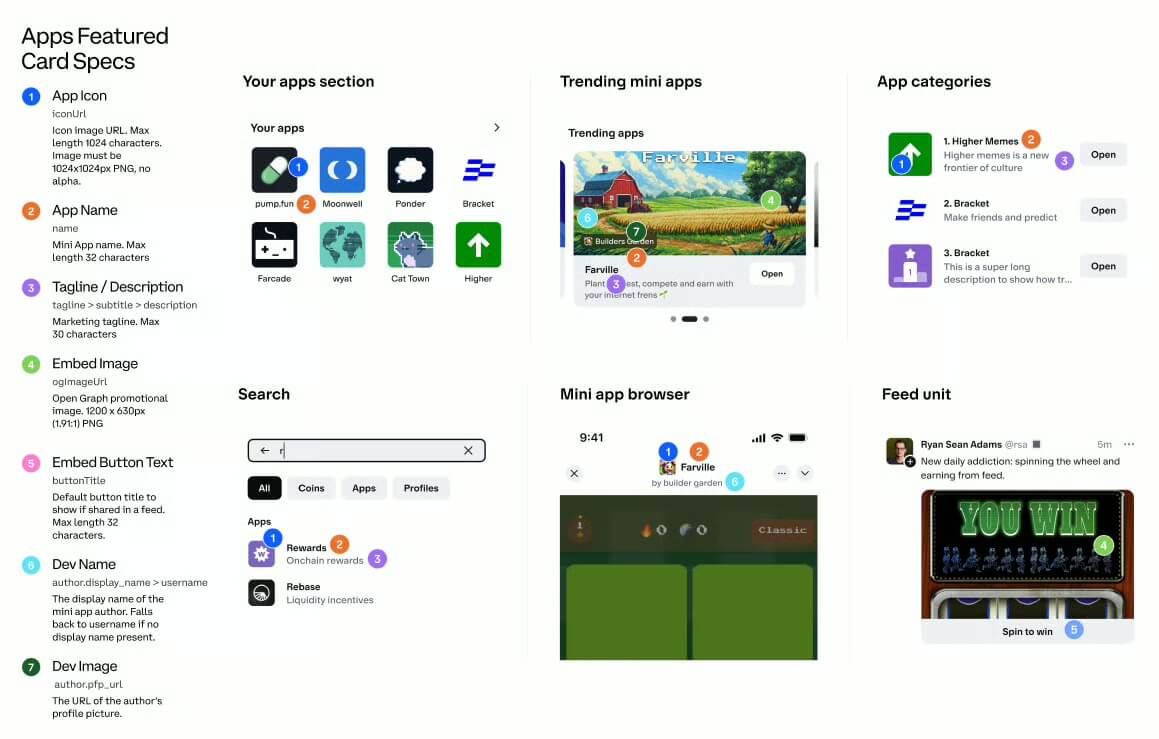
Manifest data spec
Why It’s Important
Your metadata determines how your Mini App appears across all Base App surfaces:- App icon (1024x1024px): Becomes the primary touchpoint users interact with across all surfaces
- Embed image (3:2 aspect ratio): Creates the visual hook that stops users scrolling in social feeds
- Tagline (50 characters max): Provides the instant value proposition that converts browsers into users
- Categories: Determines where your app appears in Base App’s browsing sections
You can find the Figma file for visual guide here
Design
Embeds
When a user pastes your Mini App’s link into a feed, the Base App automatically fetches your page’s Open Graph metadata before the post is published. This metadata is used to render a rich embed—complete with your image, title, and call-to-action—that appears instantly in the composer and in followers’ feeds. Well-designed embeds make your app stand out in fast-scrolling social contexts and can turn casual impressions into active launches.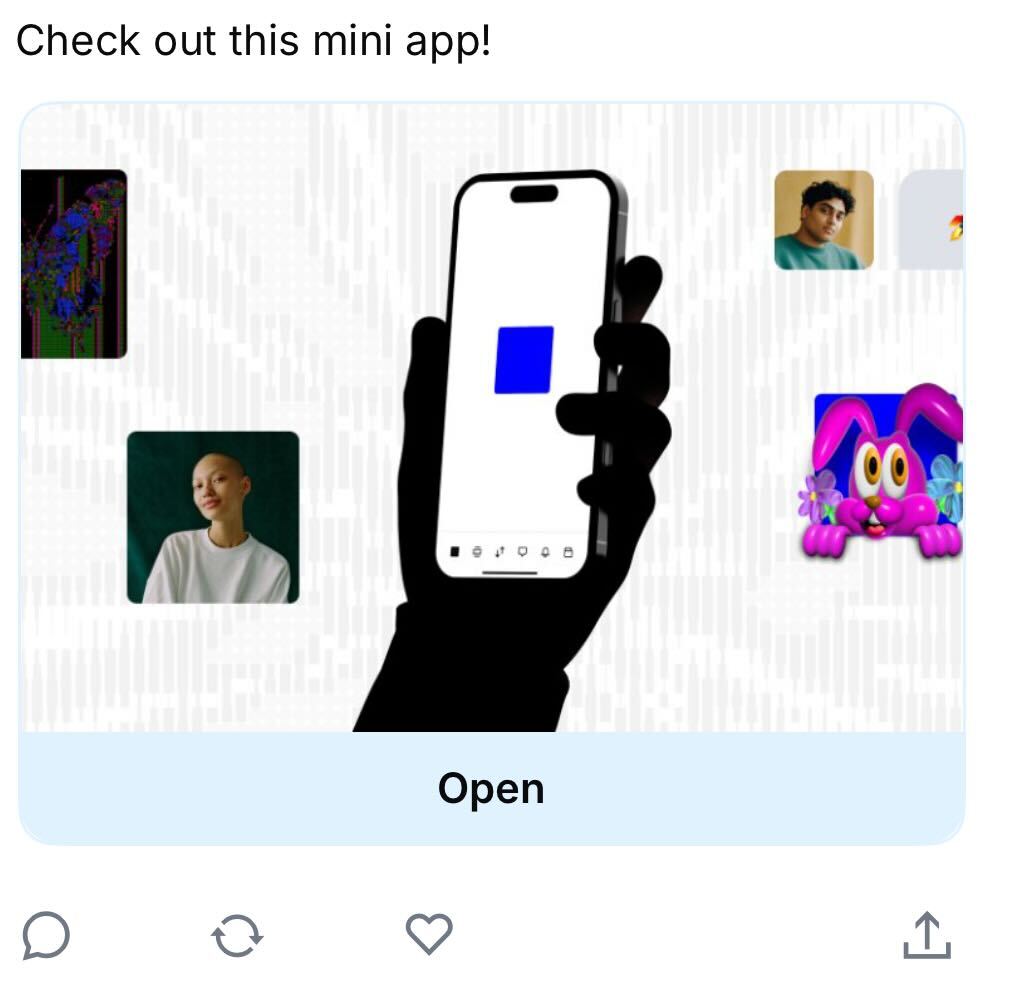
Mini App in the feed
Search
How Search Works
Users discover Mini Apps through direct search queries in Base App.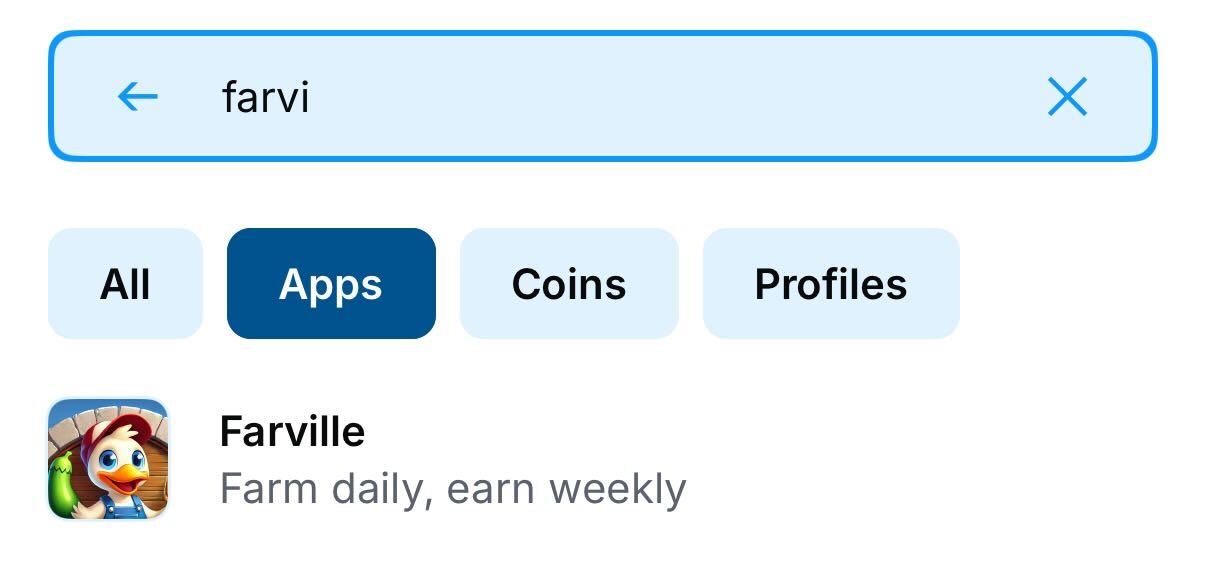
Here in The Base App you can see searching based on partial titles
Managing Search Indexing
Development Environment: Add"noindex": true to your manifest to prevent development versions from appearing in search results:
- Invalidate manifest: Update your manifest to make it invalid (removes from all discovery).
Discovery
Trending
The “Trending Today” section showcases the most popular Mini Apps being actively used and shared.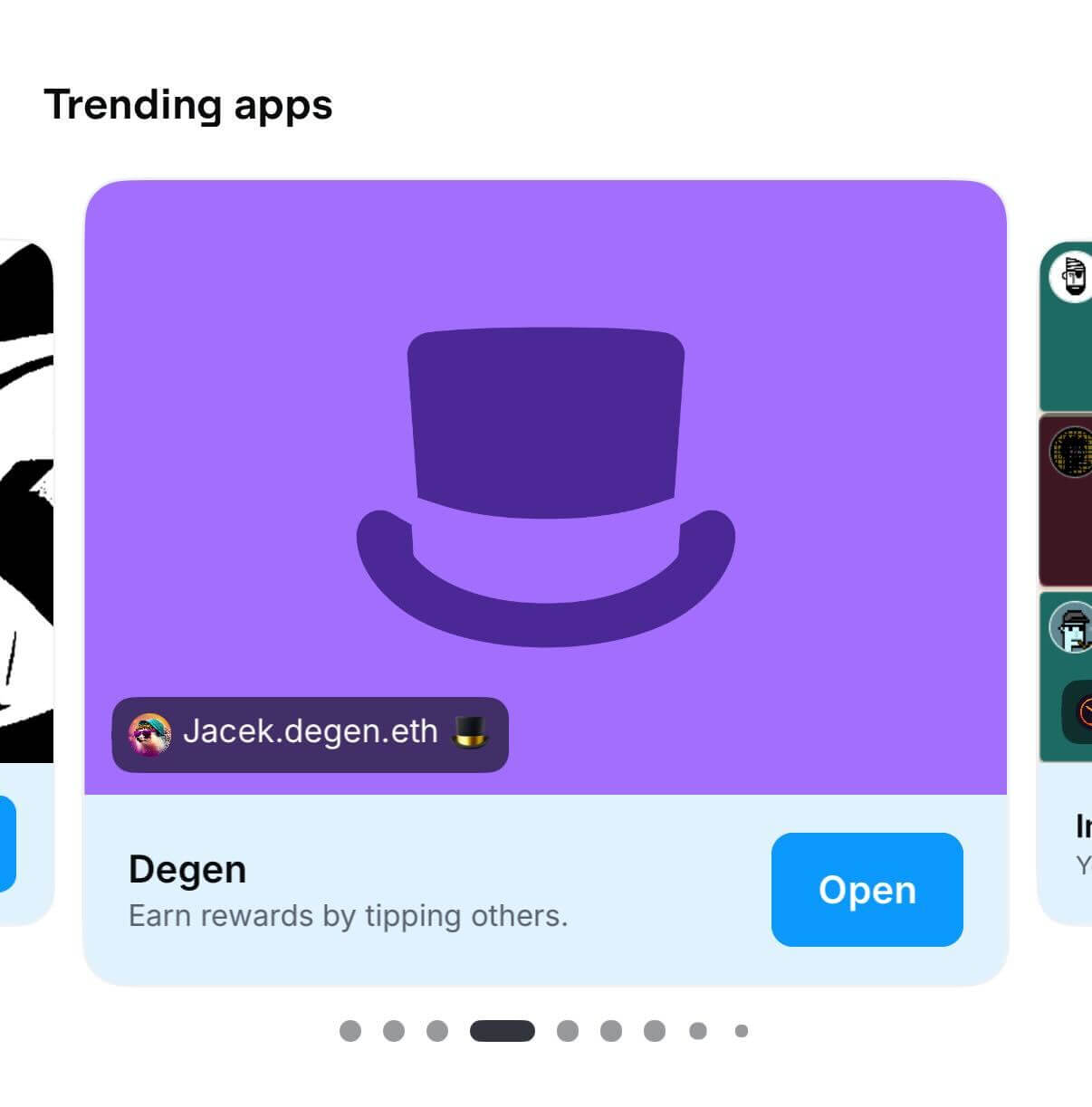
Trending Today
- Social sharing frequency
- Current user engagement metrics
Saved
Multiple surfaces help users discover Mini Apps through social interactions: Saved Apps - Personal launcher and quick access hub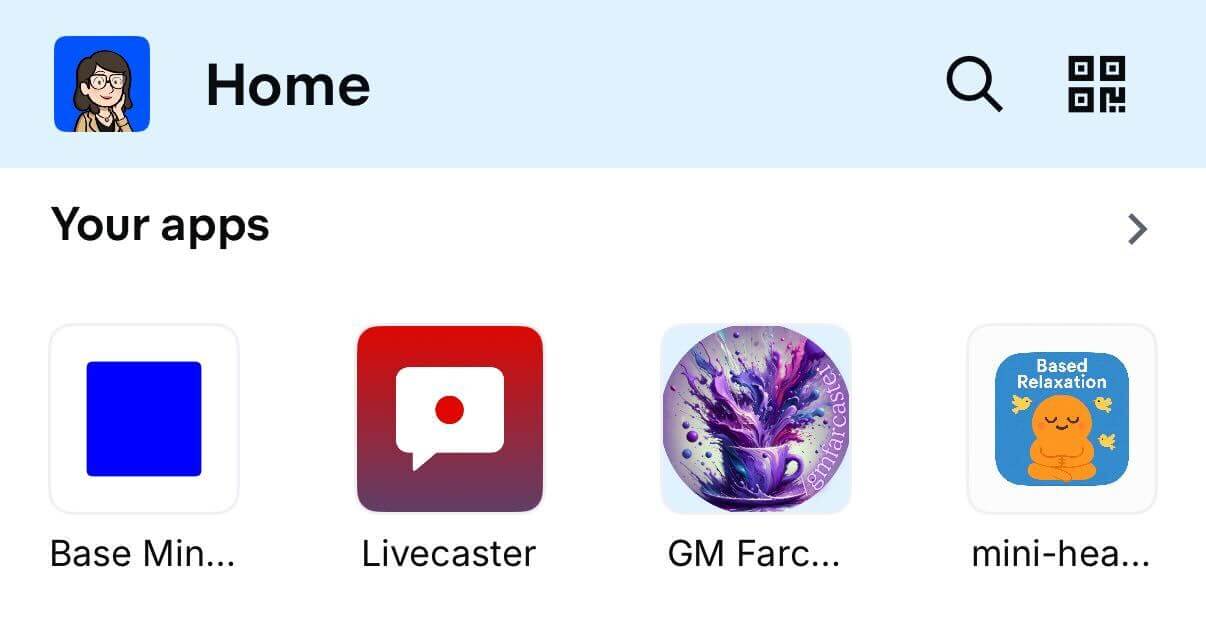
Saved Apps
- User’s saved Mini Apps
- Recently used applications
- Click on your Mini App icon after they’ve saved it
- Access through recent usage if they’ve interacted with it recently
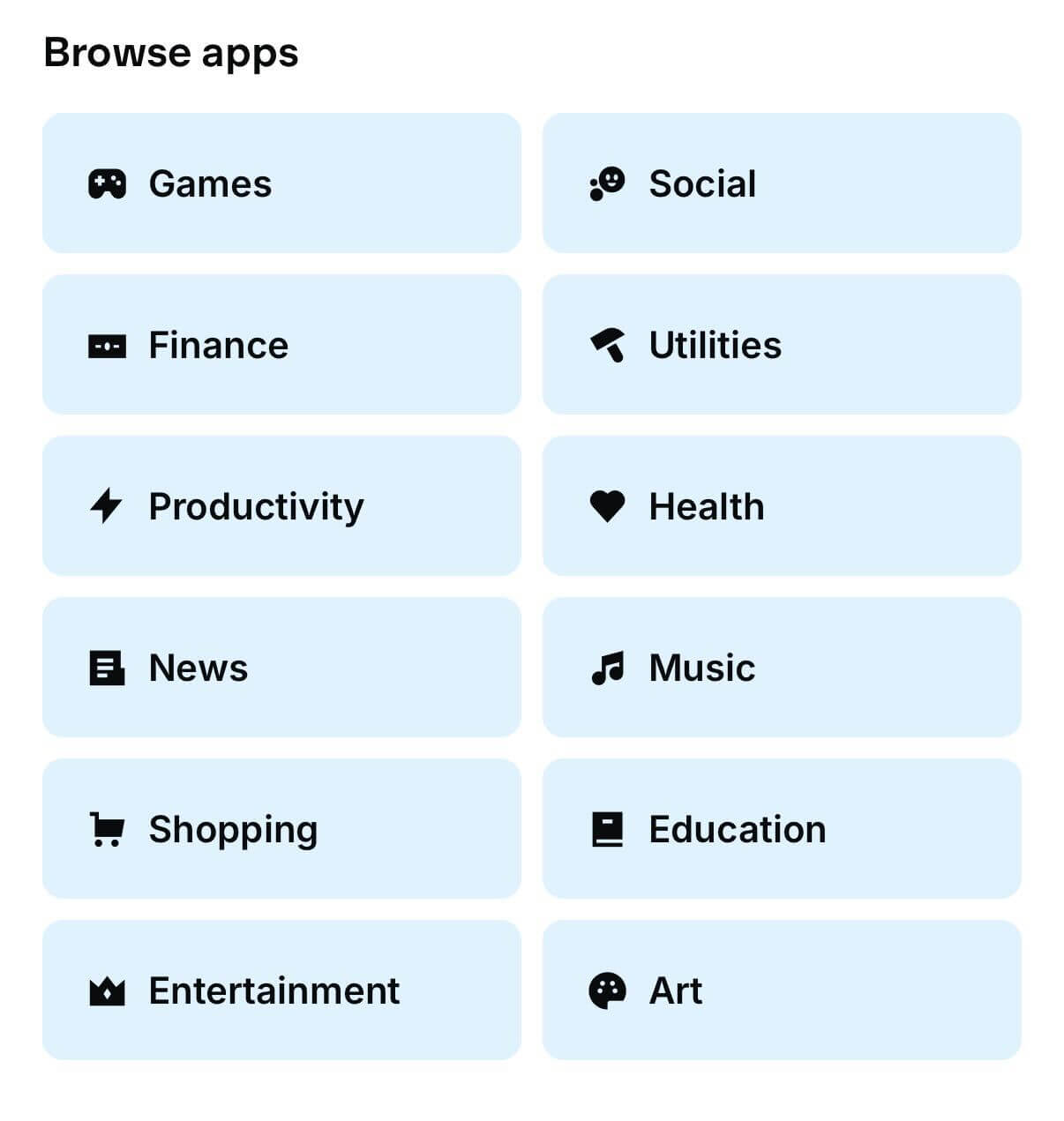
App Categories
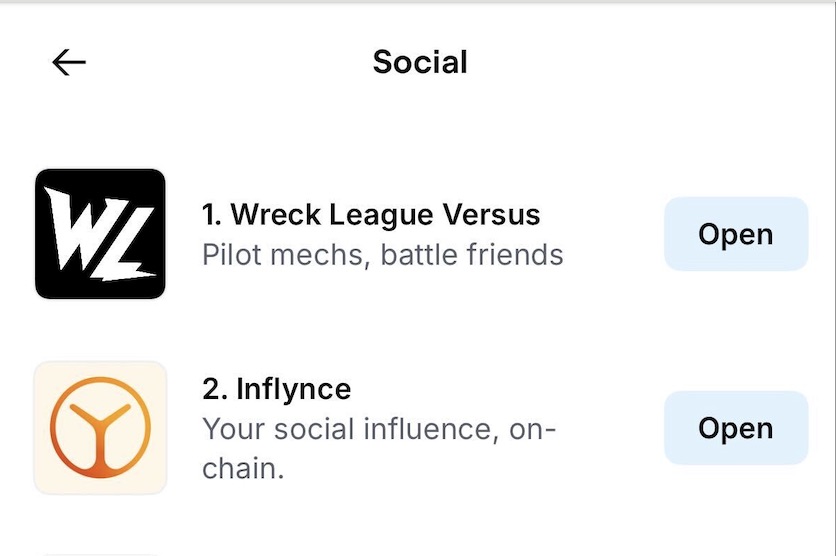
Ranking for the Social Category
Sharing
Technical implementation:- Add
fc:framemeta tags to make pages shareable as embeds - Optimize embed images for 3:2 aspect ratio
- Include compelling call-to-action text in embed buttons
- Use dynamic embed generation for personalized content
-
Implement proper manifest files: Ensure your
/.well-known/farcaster.jsonincludes all required metadata including proper categorization. Example here - Choose relevant categories: Select the most appropriate primary category in your manifest to appear in the right discovery sections
- Create shareable moments: Build features that naturally encourage users to share their achievements, creations, or experiences. Follow our Thinking Social Guide
- Design compelling embeds: Create eye-catching embed images and clear value propositions that encourage clicks from social feeds
- Encourage saves: Implement prompts for users to save your Mini App to their personal launcher for easy return access
Next Steps
Continue building your Mini App with these resources:- MiniKit Documentation: Complete MiniKit integration guide
- Thinking Social: Social mechanics and sharing best practices